Click on NEX-Forms from your WordPress backend left hand navigation.

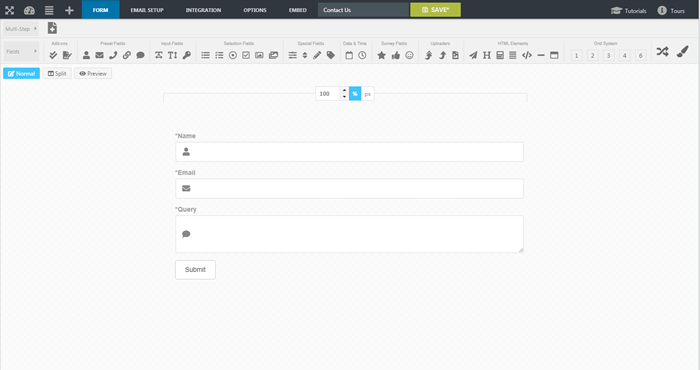
In this section you will learn to create the below form.
Click on NEX-Forms from your WordPress backend left hand navigation.
Click on NEX-Forms from your WordPress backend left hand navigation.
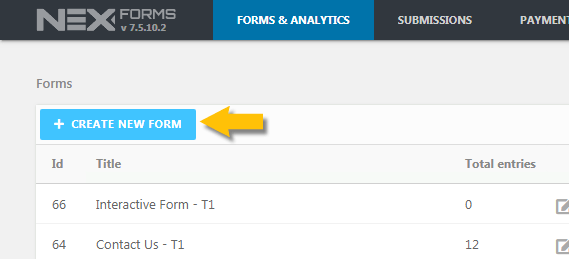
2.1 - Click on Create New Form
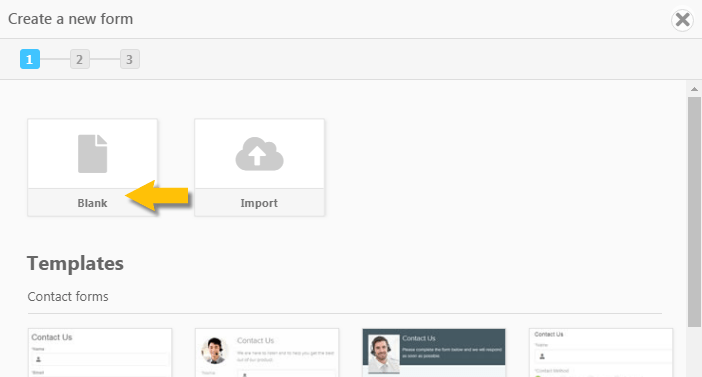
2.2 - You will see a popup appear. Although you can create templates or import forms, for the purpose of the exercise we are going to create a blank form. Click on Blank as per example below.
2.3 - Give your form a name, for example, Contact Us, and click Create

The form will now be created and you will be redirected to the Drag and Drop Form Builder Section (see step 3 below).
You are now in the builder view and we are ready to add some fields to the form.
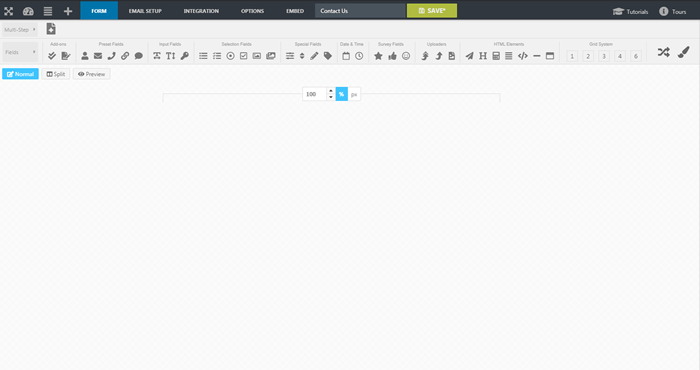
3.1 - Add a Name field to your form

3.2 - Add a Email field to your form
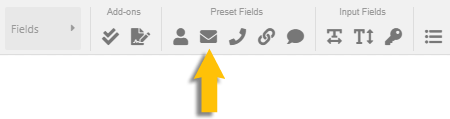
3.3 - Add a Query field to your form

3.4 - Add a Submit Button to your form
Your form should now look like the one in the example below
3.5 - Save your form

To Embed this form into a Page or Post see docs section - Embedding a Form


