- Log into your Wordpress Admin area.
- Click on the "NEX-Forms" menu item from the admin sidebar.
-
Click on the "Settings" menu item in the NEX-Forms Dashboard OR Click on the "NEX-Forms » Settings" menu item from the WordPress admin sidebar.


-
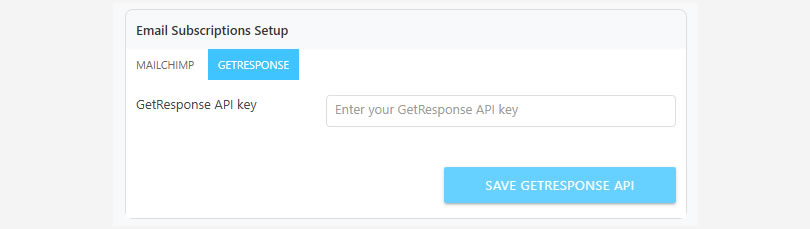
Click on the "GETRESPONSE" tab from the Email Subscription Setup panel.
-
Enter/Paste your GetResponse API key in the text field.
-
Click on "SAVE GETRESPONSE API".
NEX-Forms Documentation
Documentation & Tutorials for NEX-Forms version 8.0 and above
GetResponse API Key Setup
This article will give you a step-by-step guide on setting up your GetResponse API Key.
How ot Setup your GetResponse API Key
How to get your GetResponse API key
- Log in to your GetResponse account
- Click Tools in the header
- Select Integrations and API
- Click the API tab
- Click Generate API key
- Name your API key
- Click Generate
- Click Copy to copy the API key
Was this article helpful?
Still having trouble? How can we help you?
This article was last updated on 19 November 2024
Popular Articles
Stay in Touch
Get the latest NEX-Forms news and info by following us on:
In this article


ae84
The product is good, but once I found a conflict with my theme (a Theme Forest product from an Elite Author) I expected Basix to ignore the issue, but Basix was great working with me to find the issue. It took some time, but he didn't stop. Now I have the forms running smoothly and gathering exactly the data I need. Great plugin. Glad I chose this one over another I was considering.

Andrew Conway-Hyde recently bought a NEX-Forms - BASIC Plan

Rob Jenkins recently bought a NEX-Forms - BASIC Plan

Alexander Miltz recently bought a NEX-Forms - PRO Plan

Ioana Purel recently bought a NEX-Forms - BASIC Plan

Ina Kliemt recently bought a NEX-Forms - BASIC Plan