- Log into your Wordpress Admin area.
- Click on the "NEX-Forms" menu item from the admin sidebar.
-
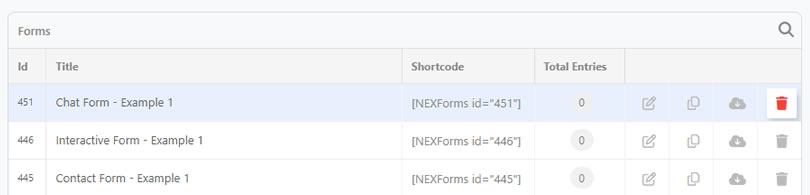
Find all your already created and saved forms in the table center right in the admin screen:


NEX-Forms Documentation
Documentation & Tutorials for NEX-Forms version 8.0 and above
Managing Forms
This article will guide you on managing your forms which includes - Searching, Editing, Duplicating, Exporting and Deleting existing forms.
Where to find existing Forms
All your saved forms are easily accessible from the NEX-Forms dashboard homepage. Follow the steps below to locate and manage your saved forms.
How to search for a Form
- Log into your Wordpress Admin area.
- Click on the "NEX-Forms" menu item from the admin sidebar.
-
Click on the Search Icon in the top right corner and start typing. The system will search the form titles as well as the form ID's from your search term.

Editing Existing Forms
- Log into your Wordpress Admin area.
- Click on the "NEX-Forms" menu item from the admin sidebar.
-
Hover over the form row and click on the EDIT icon. Alternatively click on the Form Title.

Duplicating Existing Forms
Use form duplication to quickly create new forms based on existing templates (already created forms). This feature is also a convenient way to create backups of your forms for safekeeping.
- Log into your Wordpress Admin area.
- Click on the "NEX-Forms" menu item from the admin sidebar.
-
Hover over the form row and click on the DUPLICATION icon.

Exporting Existing Forms
Exporting an existing form generates a ready-to-use import file, which can be easily uploaded into any other NEX-Forms installation. This feature also serves as an excellent way to back up your forms for safekeeping and future use.
- Log into your Wordpress Admin area.
- Click on the "NEX-Forms" menu item from the admin sidebar.
-
Hover over the form row and click on the EXPORT icon.

Deleting Existing Forms
- Log into your Wordpress Admin area.
- Click on the "NEX-Forms" menu item from the admin sidebar.
-
Hover over the form row and click on the DELETE icon.
Was this article helpful?
Still having trouble? How can we help you?
This article was last updated on 19 November 2024
Popular Articles
Stay in Touch
Get the latest NEX-Forms news and info by following us on:
In this article


abee984 recently bought a NEX-Forms - BASIC Plan

Linzila Dooel recently bought a NEX-Forms - BASIC Plan

Loukas Stratomperdas recently bought a NEX-Forms - ELITE Plan

Gary Roost recently bought a NEX-Forms - BASIC Plan

Enrico Baumgart recently bought a NEX-Forms - BASIC Plan